Viewing the Monitoring Screen
Permissions Required
- Organization administrators
- Group administrators
How to Open
- Open
Course List.
- Open the target course.
- Click
Monitoring.
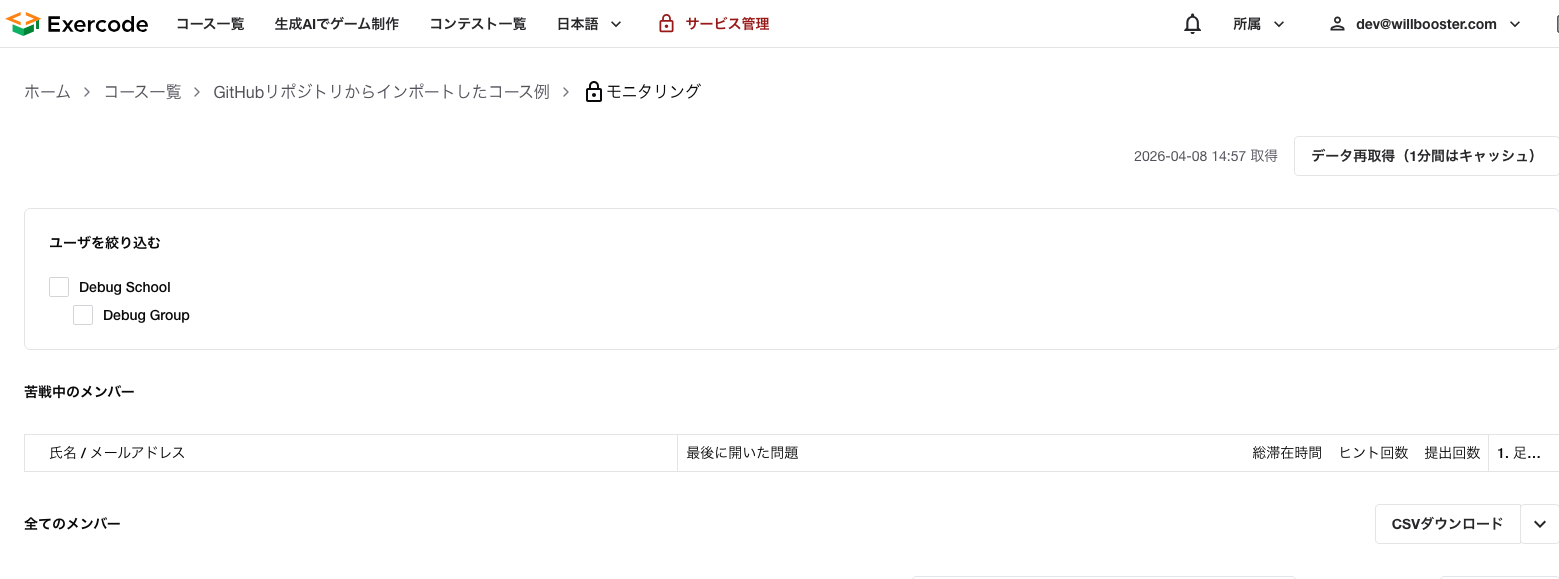
What You Can Do on This Screen
- Filter the students to display by organization or group
- Check struggling students first
- View all students' progress in a list
- Switch the lesson range to display
- Switch student names to anonymous display
- Enable auto-refresh to keep the screen open and view the latest status
- Download progress as CSV
- Check whether there are any submissions requiring manual grading
How to Read the Display
- Green: Correct
- Yellow: Correct after the deadline
- Red: Incorrect
- Light green: Correct during review
- Gray: Not started
- The time the data was retrieved is displayed at the top of the screen.
- When
Auto-refresh is checked, the data is automatically re-retrieved approximately every minute while the screen remains open. The setting is saved in the browser and carried over to future sessions.
- If re-retrieval fails, the previously retrieved data remains displayed, and an error is shown next to the retrieval time.
- When you select a single lesson, you can also display the lessons before and after it.
AI Chat Question Status
The speech bubble in the "AI Chat" column represents the questions students asked today in that course.
- Clicking the speech bubble lets you view today's conversations, sorted by the most recent question time. While a summary is being generated or if it cannot be retrieved, "Questions to AI" is displayed.
- The number of today's conversations is displayed next to the speech bubble.
- Clicking a question summary lets you view the questions and AI answers from that conversation.
- Clicking "View past conversations" opens the AI chat list filtered by that student and course.
- Question history is retrieved at the same timing as the existing monitoring feature. This includes cases such as "Re-retrieve data," auto-refresh, changes to filter conditions, or returning to the browser tab after the retrieved data has become outdated.
- There is no switching of display due to opening/closing the chat panel, tab visibility, or loss of connection. New chats with no questions asked are not included in the display.
The display target is chats in which students in the selected organization or group asked questions in this course today. Only conversations you have permission to view are displayed.
Display When Class Time Is Set
If class time is set, you can distinguish whether each cell represents a submission made during class time or outside class time.
- Problems submitted during class time: The cell is displayed filled in.
- Problems submitted outside class time: The cell is displayed with an outline only (hollow).
- Problems not submitted: Displayed filled in regardless of class time settings.
This allows you to tell at a glance the difference between submissions worked on during class and those worked on as self-study or homework. If class time is not set, all submissions are displayed filled in.
Notes
Filter users allows switching by both organization and group.Struggling students prioritizes the display of students who have not updated for a certain period of time, etc.- In the CSV, you can add columns such as email address, affiliation, submission date/time, score, outstanding work flag, and source code.
- Setting up profile information such as names and email addresses makes it easier to review the list.
