Checking AI Chat Usage Within an Organization
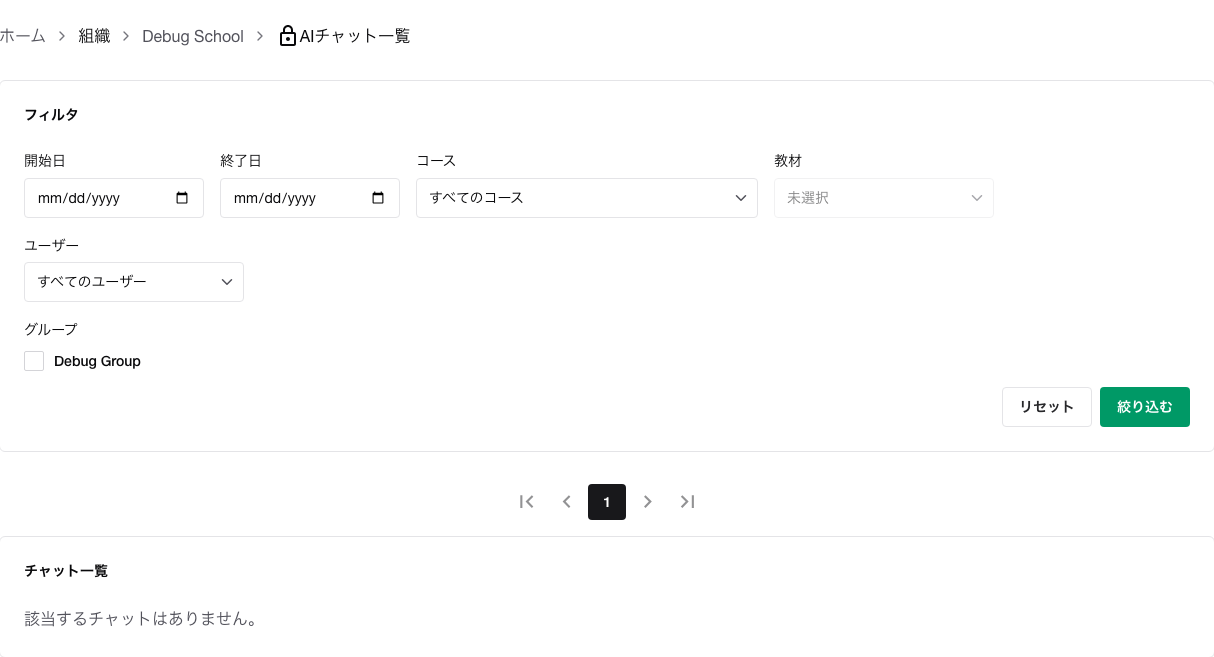
The organization-specific AI chat monitoring screen lets you check which users used chat with which learning materials.
Required Permissions
- Organization administrators
- Group administrators
What You Can Do
- Filter by period, subject, learning material, user, or group
- Open details from the chat list
- Check usage counts per learning material in a table
How to Open
- Open the screen for the target organization.
- Open
AI Chat Monitoring.
What You Can Check on the List Screen
- Creation date and time
- User
- Subject name
- Learning material name
- First question
- Number of questions in that chat
Filter by date range, subject, learning material, user, or group as needed.
What You Can Check on the Details Screen
- Chat creation date and time
- Number of questions
- User
- Target subject and learning material
- User input and AI responses
How to Read Usage Counts
On the usage count monitoring screen, you can check counts per user and per learning material in a table.
Clicking a count takes you to the chat list filtered by that condition.
Notes
- Organization administrators can check chats associated with the organization.
- Group administrators can only check chats for subjects, classes, and learning materials associated with groups where they are an administrator.
- Service administrators can check the same range as organization administrators.
- For periods or learning materials with no chats, the count is displayed as 0.
Related Pages
