
© WillBooster Inc.
On the Teaching Material Repositories screen, you can connect teaching material repositories on GitHub to Exercode, review differences, and then import them. After you confirm an import, processing runs in the background, so it will continue even if you close the screen.
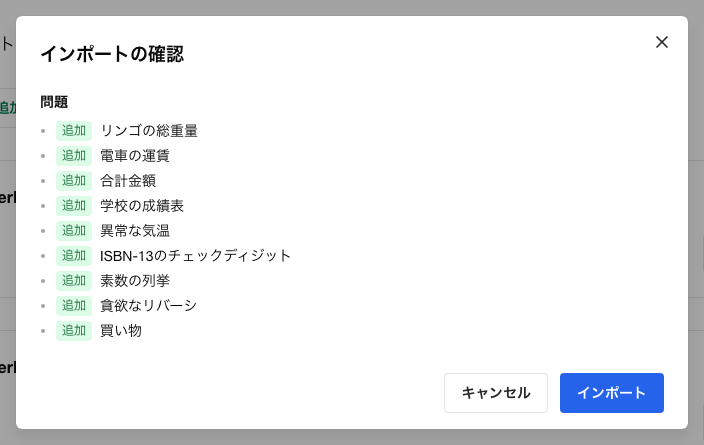
Teaching Material Repositories from the header.Add from My GitHub.Sync with My GitHub.Register to Organization on the target repository and select the destination organization.Import on the target repository.Import button on the target repository shows a loading indicator.Course IDs belonging to a different teaching material repository cannot be overwritten by a normal import. To move a course between repositories owned by the same owner or organization, delete the course from the latest state of the source repository, then run Move Course, which is displayed in the import confirmation dialog of the destination repository. After the move, review the differences again before importing.
Importing also fails if a problem ID belongs to a different teaching material repository. If the problem ID duplication is unintended, change the problem ID on GitHub. If problems are to move as a result of moving a course, do not move the problems alone; use the Move Course feature described above instead.
Imports run in the background. Even if you close your browser or navigate to another page while processing, the server-side processing continues.
For a repository being processed, the Import button is disabled. Hovering over the button shows which repository's import is currently running.
If you run imports on multiple teaching material repositories, the import processes run sequentially. Therefore, you may have to wait until another repository's import completes before yours starts and finishes.
Register to Organization appears for teaching material repositories that you added via the GitHub App but have not yet registered. You can select only organizations in which you are an administrator as the registration destination.
Once registered to an organization, that organization's administrators can also view and import the teaching material repository. Additionally, courses imported from a registered repository can be added to organizations and groups.
Files includes differences in images, PDFs, and other files under assets.If an error occurs, a dialog showing the failure details appears on the screen where you started the import. If you closed the screen or want to check later, you can view the failure on the target repository's card.
For errors that can be fixed by adjusting GitHub settings or the teaching material content, details are displayed along with actions to open in GitHub, open in VSCode, and copy an AI-fix prompt. For errors whose cause cannot be identified, Retry is displayed. If retrying does not resolve the issue, please contact an administrator.